Introduction
SSO integration configuration using SAML 2.0 involves both your identity provider and the OpsRamp platform to configure redirects to your custom branding URL. SAML 2.0 is an XML-based standard that enables secure exchange of authentication and authorization data between your identity provider and OpsRamp.
Prerequisites
- Partners register with OpsRamp to get login credentials.
- Provide a custom branding URL, such as <yourwebsitename>.opsramp.com.
- Access to your identity provider with permissions to create and manage SAML applications.
- The following values from your identity provider:
- SAML Endpoints for HTTP (Redirection URL)
- x.509 Certificate (or metadata XML file)
- Identity provider Issuer URL
- Logout URL
Configure Your Identity Provider SAML Application
Before configuring OpsRamp, set up a SAML 2.0 application in your identity provider:
Log in to your identity provider’s admin console.
Navigate to the application management section and create a new SAML 2.0 application.
Configure the following SAML settings for the OpsRamp integration:
- Entity ID / Audience URI:
https://<yoursubdomain>.app.opsramp.com - ACS URL (Assertion Consumer Service URL):
https://<yoursubdomain>.app.opsramp.com/sso/saml/callback - Name ID Format:
EmailAddress - Logout URL:
https://<yoursubdomain>.app.opsramp.com
- Entity ID / Audience URI:
After saving, retrieve the following from the identity provider:
- Issuer URL (Entity ID)
- Redirection URL (SSO URL / SAML Endpoint)
- Logout URL
- x.509 Certificate
These values can typically be exported as a Metadata XML file from your identity provider.
OpsRamp Configuration
Click All Clients, select a client.
Click Setup > Account.
Select the Integrations tile.
The Installed Integrations screen is displayed, with all the installed applications. Click + ADD on the Installed Integrations page.
If you do not have any installed applications, you will be navigated to the Available Integrations page. The Available Integrations page displays all the available applications along with the newly created application with the version.
Search for Custom (SSO) using the search option available. Alternatively, use the All Categories option to search.
Click +Add on the Custom (SSO) tile.
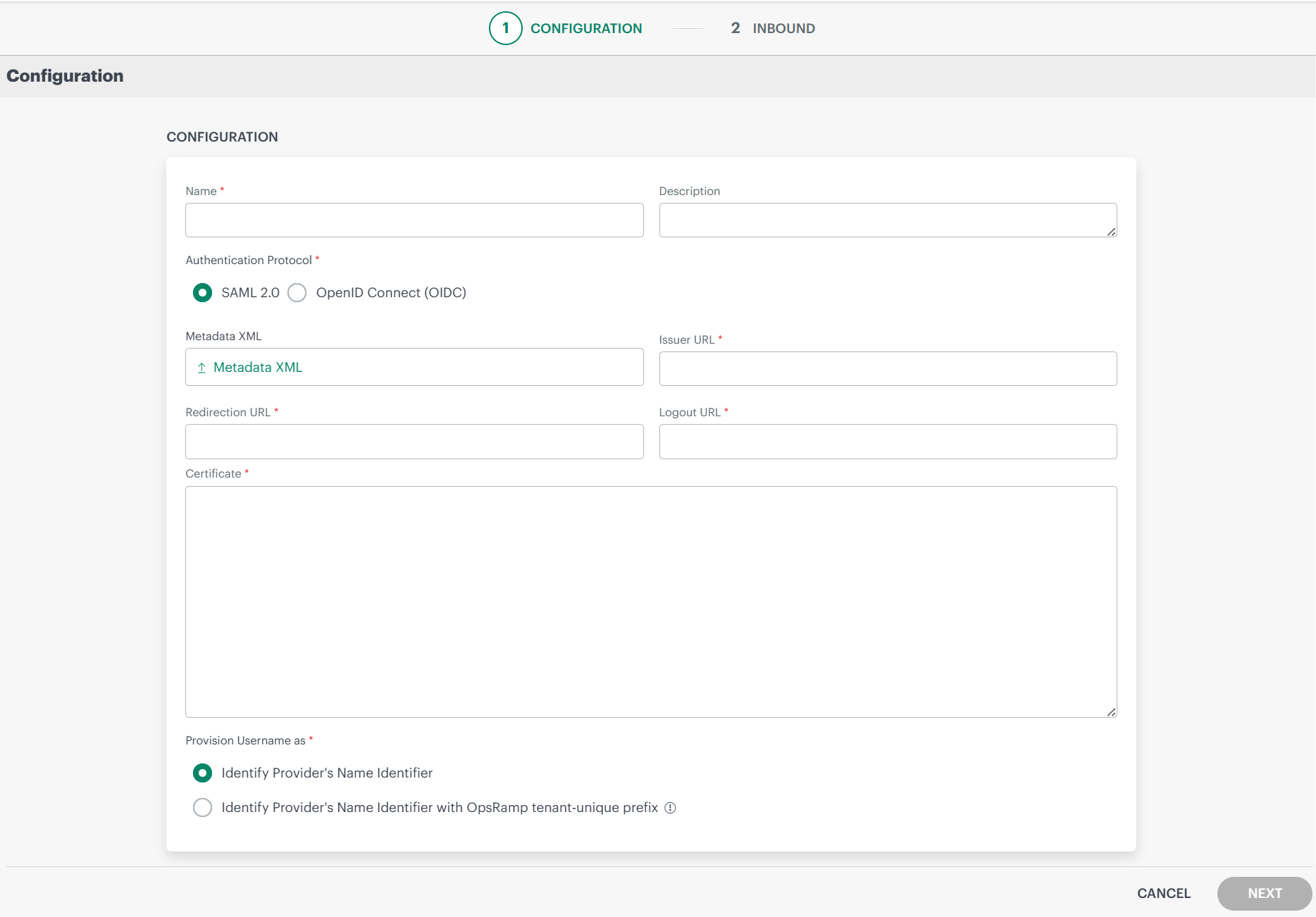
Authentication Protocol: Select SAML 2.0.Enter the following information in the Configuration page:
- Name (Required): Enter a unique name for the integration.
- Description: Provide a description for the integration.
- Metadata XML: Upload the XML file exported from your identity provider. This file contains the Issuer URL, Redirection URL, Logout URL, and Certificate. After uploading, these fields are automatically populated.
Alternatively, you can enter the information in the fields manually. - Issuer URL (Required): Identity provider Issuer URL (Entity ID).
Example:https://idp.example.com/issuer - Redirection URL (Required): SAML Endpoint for HTTP (SSO URL).
Example:https://idp.example.com/sso/saml - Logout URL (Required): URL for logging out of the identity provider session.
Example:https://idp.example.com/logout - Certificate (Required): x.509 Certificate from your identity provider used to verify SAML assertions.
Provision Username as: There are two ways to provision a user. Select the appropriate option:
Identify Provider’s Name Identifier option is selected by default. The user which is created in the SSO portal will reflect in OpsRamp.
Identify Provider’s Name Identifier with OpsRamp tenant-unique prefix: This option allows you to:
- Create usernames with a unique 3-digit alphanumeric prefix, that is generated automatically by the system.
- Install the same identity provider across multiple OpsRamp tenants.
Note: Once you enable this option and install the integration, you cannot revert your changes.
Example: There are three partners, Partner P1, P2, and P3. Each partner has usernames created with unique 3-digit alphanumeric prefix, like g0z.username1 for partner P1, p0w.username1 for partner P2, and t9q.username1 for partner P3.
Click Next.
In the Inbound page, there are two sections: USER PROVISION and MAP ATTRIBUTES.
USER PROVISION
OpsRamp supports the following user provisioning methods:
- JIT
- NONE: Only the existing users will be able to login.
JIT
Following section describes JIT provisioning in detail.
In the Inbound page:
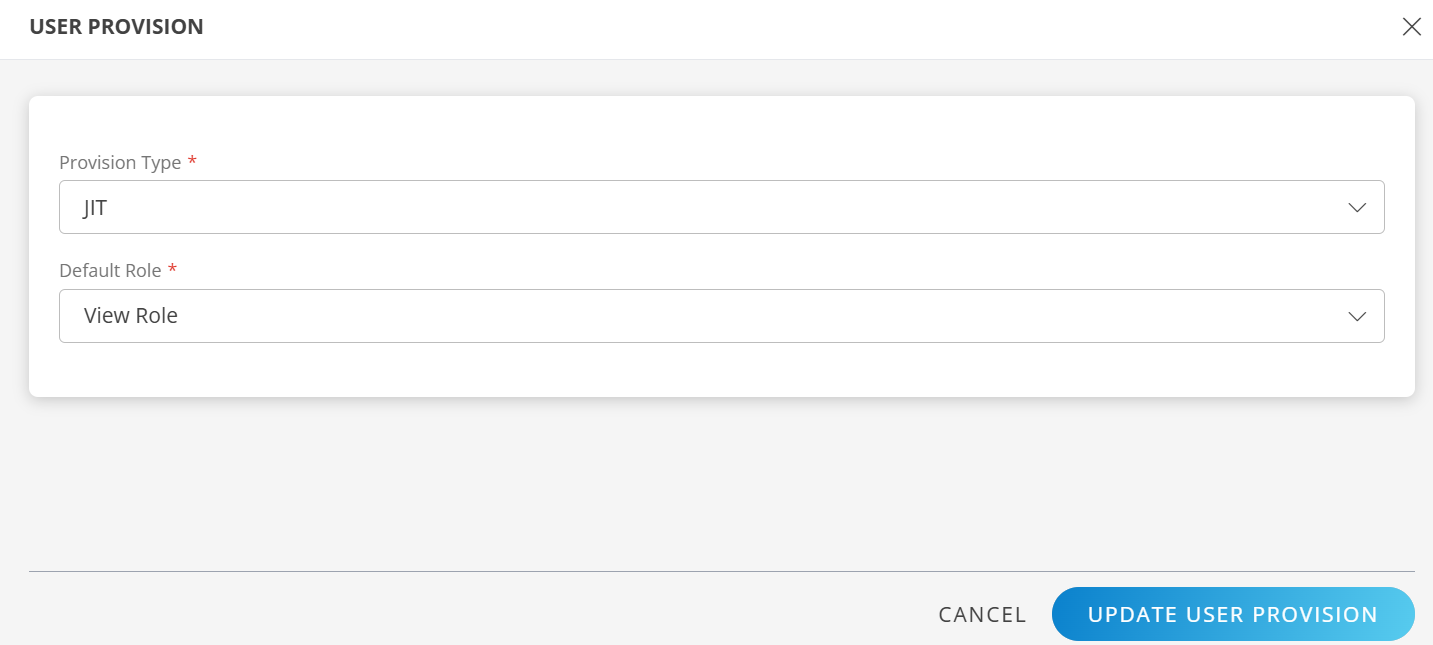
- Click the edit icon, enter the following details, and click UPDATE USER PROVISION:
- Provision Type: Select JIT. When configuring the integration it is necessary to select the Provision Type - JIT to synchronize users when provisioning occurs.
- Default Role: The required user role.
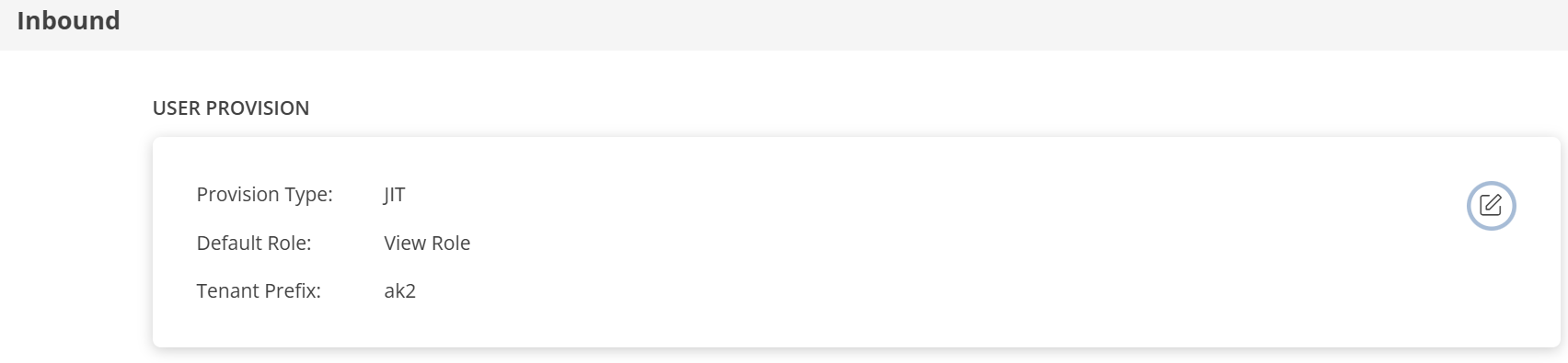
The details are updated and the USER PROVISION section displays the unique Tenant Prefix. These details are used when configuring custom SSO Provisioning settings.
MAP ATTRIBUTES
Define the following Map Attributes:
Note:
- For JIT: The OpsRamp properties like Primary Email, First Name, Last Name, and Role are required.
- Click +Add in the Map Attributes section.
- From the Add Map Attributes window, enter the following information:
User:
- Select OpsRamp Entity as User and OpsRamp Property as Role.
Role mapping is required for User and User Group.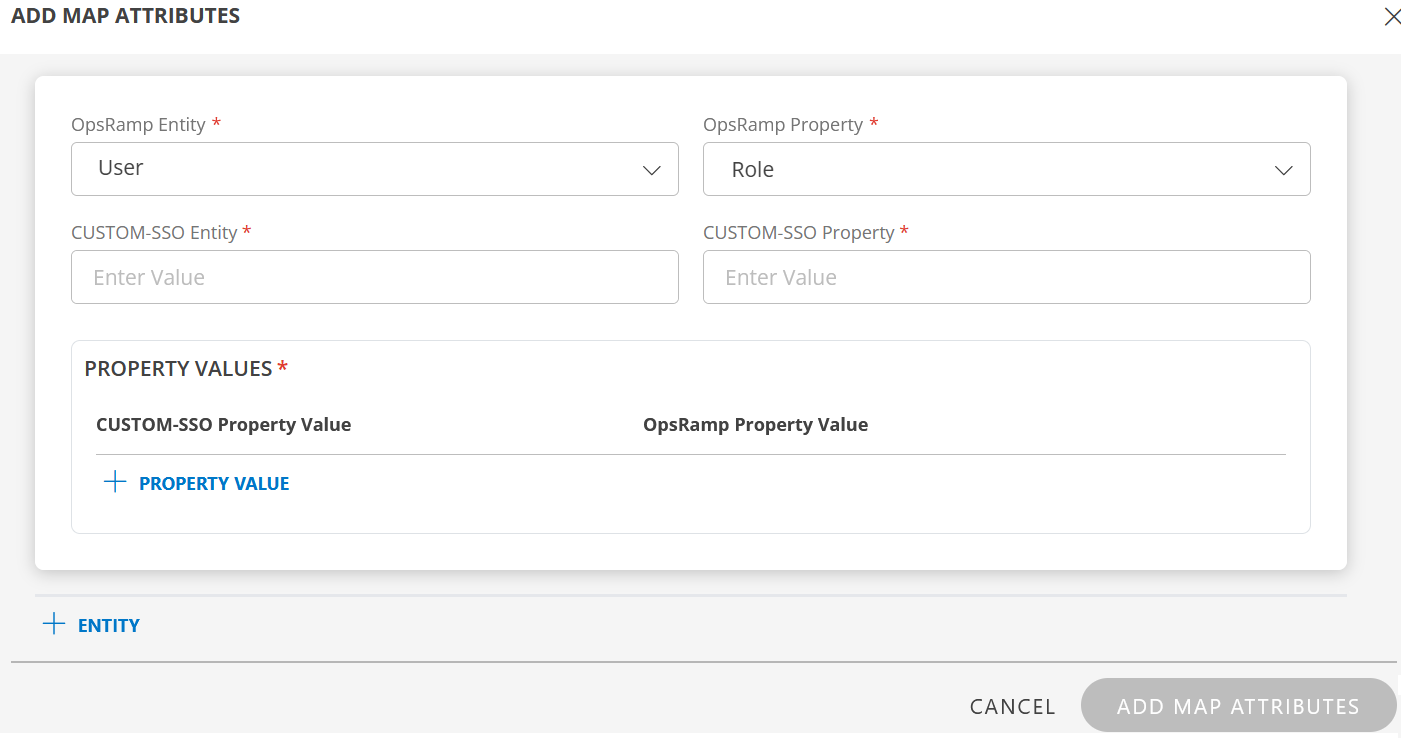
- Custom-SSO Entity: Enter the value.
- Custom-SSO Property: Enter the value.
In PROPERTY VALUES section: - Custom-SSO Property Value: The user details in the SAML assertion attributes received by OpsRamp contains the field information. Ensure that you provide the value of the field in this box.
- Example SAML assertion attributes:
<saml:Attribute Name="email"> <saml:AttributeValue>user.name1@example.com</saml:AttributeValue> </saml:Attribute> <saml:Attribute Name="firstName"> <saml:AttributeValue>User</saml:AttributeValue> </saml:Attribute> <saml:Attribute Name="lastName"> <saml:AttributeValue>Name1</saml:AttributeValue> </saml:Attribute> <saml:Attribute Name="role"> <saml:AttributeValue>admin</saml:AttributeValue> </saml:Attribute> - OpsRamp Property Value: Select the appropriate role corresponding to the Custom-SSO Property Value.
- Click Save. The mapping is saved and displayed.
To add more property values click +Property Value.
Use the Filter option to filter the map attributes.
Similarly, map attributes for other entities.
Note: If mapping for Time Zone is not provided, then organization timezone is considered by default.
If the Role is not configured in Map Attributes section, the Default Role provided in the USER PROVISION section is considered for SSO.
- Click ADD MAP ATTRIBUTES.
- Click the three dots (menu icon) available at the end of each row to edit or delete a map attribute.
- Use the Filter option to filter the map attributes.
Click Finish. The Custom SSO integration is installed and displayed under Installed Integrations.
Actions on Integration
You can perform actions like View Logs, Export, Edit, and Uninstall on the integration.
- See Actions on Integration for more information.
Audit Logs
View Inbound logs from the View Logs option for the integration. You can view if the event was successful or not.
See Audit Logs for more information.
Verification of SSO Integration
After completing the configuration, verify the integration:
From your identity provider console, go to the OpsRamp SAML application.
Verify the following settings are correctly configured:
- Issuer URL: Identity Provider Issuer URL (Entity ID)
- Redirection URL: Identity Provider SSO URL (SAML Endpoint)
- Logout URL: URL for logging out
- Certificate: x.509 Certificate
Attempt to log in to OpsRamp using your identity provider credentials via the custom branding URL.
Upon successful authentication, verify that the user is created or updated in OpsRamp under Setup > Account > Users and Permissions > Users.